
How to Use the Media Library in BOKBOK
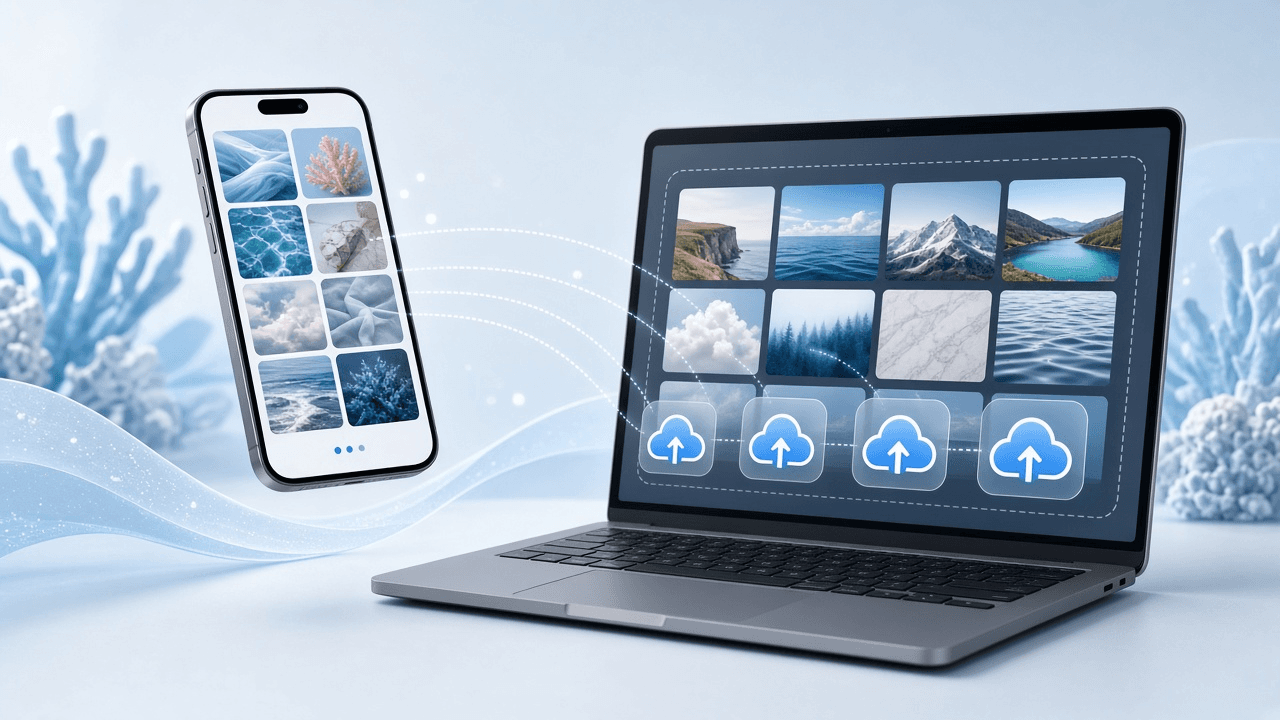
The Media library is a photo box of pictures you already used in posts that went live. Instead of digging through your phone every time, you tap a trusted photo and reuse it.
Related guide: Start free on BOKBOK
What shows up here?
Photos from posts you already shared through BOKBOK. It is your own collection — not random pictures from the internet.
If the box is empty, make a post with photos first. After those posts go live, the pictures appear here for later.
How to reuse photos (step by step)
1. Open Media in Post Automation.
2. Tap the photos you want (there is a limit so each post stays clear).
3. Send them to Create Post.
4. Write or fix the caption.
5. Preview, then Post now or Schedule.
- Only pick photos that still match today’s offer.
- Use Preview if you need a closer look.
- Use Download if you also need the file on your computer.
When to reuse vs when to take a new photo
Reuse: shop front, packaging, smiling staff, timeless thank-you pictures.
Take new: limited offers, new stock, anything with a date written on a board.
A nice mix: one fresh photo + one strong library photo.
If you cannot select more photos
Each post allows only a set number of pictures so feeds stay readable. Untick one photo to pick another.
Media library vs uploading on Create Post
Create Post still lets you add brand-new files from your computer or phone. The Media library is the shortcut for photos you already trust. Many posts use both.
Keeping the box useful without cleaning forever
You do not need to delete every old thumbnail. Just skip outdated pictures when you select. Over time you naturally reuse your best shots.
Frequently asked questions
Can I upload a brand-new photo on the Media page?
New uploads happen on Create Post. After that post goes live, the photo joins the Media library.
Does reusing a photo post it twice by itself?
No. Reusing only puts the photo into the post you are writing. You still choose when it goes live.
Why is the library empty?
You have not published a post with photos yet, or photos are still catching up. Share one photo post, then open Media again.
Can I use library photos on Instagram?
Yes, as long as you select them into Create Post and Instagram is connected. Instagram usually needs at least one photo.
Next steps
Reuse trusted photos from the Media library in BOKBOK at messagereply.com. Help: WhatsApp +880 1806-106235.
Read the full Start free on BOKBOK page, browse the BOKBOK blog, or compare features, integrations, and industries.
Try BOKBOK free
Reply to customers faster on website, WhatsApp, Facebook, and Instagram.
Official platform resources
These are public help pages from each platform (account or Page basics only). They are not BOKBOK setup steps — after your account is ready, connect inside BOKBOK or message our team for guided help.
- Create a Facebook Page
Official Meta help for creating a Facebook Page for your business.
- Switch to an Instagram Professional Account
Official Instagram help for Business or Creator (Professional) accounts.
Explore related topics
Dive deeper into BOKBOK features, integrations, and industry guides connected to this article.
Features
Related articles
How to Add Photos to a Social Post in BOKBOK
Attach one or more photos to a BOKBOK social post, preview them, then publish or schedule.

One Photo or Several: How to Choose in BOKBOK
Add one strong photo or a small set in BOKBOK, put the best first, and preview before you publish.
How to Share Before-and-After Photos with BOKBOK
Add a before photo and an after photo in BOKBOK, explain the work in plain words, and preview before publishing.
How to Add a Photo After You Write the Caption in BOKBOK
Write the words first in BOKBOK, then attach photos, preview, and publish or schedule.